 pick a feature
How to Embed a Feedback Board on Your Website: 3 Methods
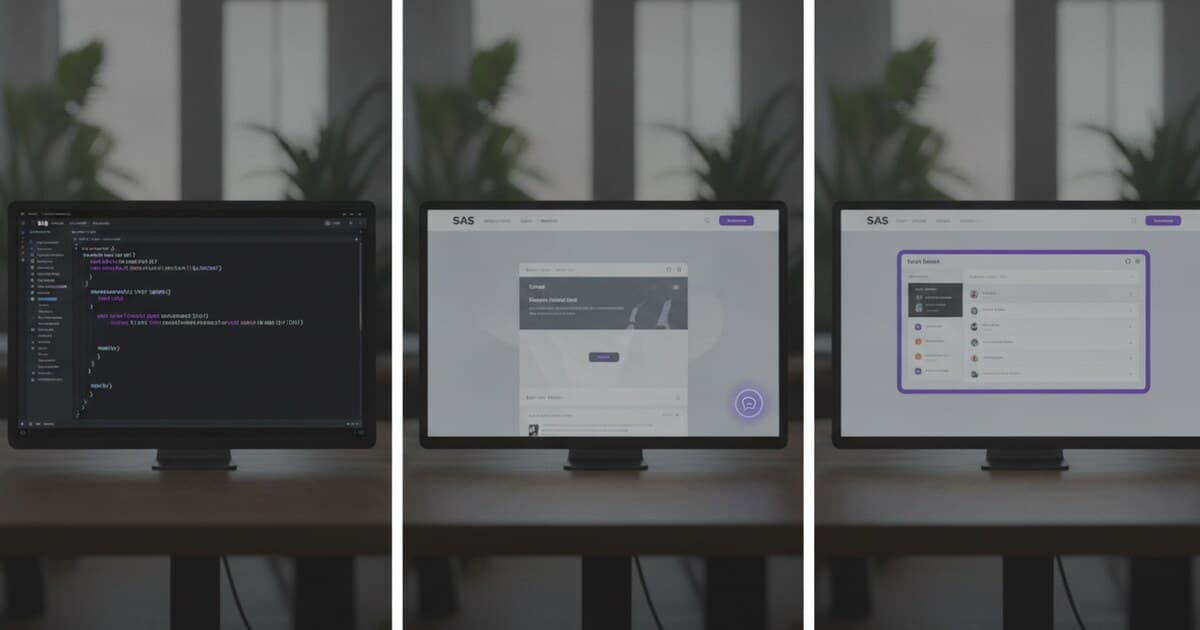
You've got a hosted feedback board. Your users should be able to suggest features and upvote what matters to them. The question is how to put that board where people will actually find it, not buried behind a link in the footer nobody clicks.
There are three ways to embed a feedback board on your website: an iframe that loads the board in a contained frame, a floating JavaScript launcher that adds a "Feedback" button to every page, and an inline embed that drops the board directly into a page section. Each has a different use case, and picking the wrong one creates friction instead of removing it.
This guide covers all three approaches with working code, explains when each makes sense, and shows how pick a feature's web SDK supports all three from a single script tag.
To embed a feedback board on your website, choose from three methods: an iframe that loads your hosted board URL in a sandboxed frame, a floating JS launcher that adds a persistent feedback button site-wide, or an inline embed that renders the board inside a specific page container. Each suits a different use case and takes under 10 minutes to set up.
The Three Embedding Methods
Before diving into code, here's how the approaches differ.
An iframe loads an external URL in a sandboxed frame. Any tool with a public board URL supports this: paste the URL into <iframe> tags, set a height, done. The tradeoff is that iframes don't resize automatically, and you can't pass signed-in user data from your app to the board without URL parameters.
A floating script launcher injects a small button that hovers in a corner of every page. Users click it to open the board in a side panel or modal. One script tag works site-wide, and you can call a JavaScript API to identify the signed-in user so their votes are attributed correctly.
An inline embed renders the board directly inside a <div> you specify. No button, no modal. The board appears as part of the page's content. This is the right choice when you want a dedicated "Feature Requests" or "Roadmap" route under your own domain.
The three embedding patterns serve different contexts. Iframes are the oldest approach and still work for straightforward use cases: loading a FeedBear board, a hosted Feature Upvote page, or any tool that gives you a public board URL to surface inline. Browser privacy changes (third-party cookie restrictions in Firefox and Safari since 2020, Chrome's phase-out in 2024) don't affect the iframe's ability to load the page; they affect cross-origin scripts that rely on shared session cookies. Floating script launchers became the dominant pattern after 2018 because they work site-wide without a dedicated embed page. They load asynchronously, don't block page rendering, and let you pass signed-in user data to the board via JavaScript, which an iframe can't do without URL parameters. Inline embeds are the newest pattern, popularized by composable SaaS tools. They replace the hosted board URL for teams who want the board experience on a custom route under their own domain, with their own layout and navigation around it.
Method 1: iframe Embed
The iframe approach works with any tool that gives you a public board URL, including pick a feature's hosted feedback board.
<iframe
  src="https://pickafeature.com/b/your-slug"
  width="100%"
  height="600"
  style="border: none;"
  title="Feature Requests"
  loading="lazy">
</iframe>
Replace your-slug with the board slug from your pick a feature dashboard (editable under project settings). That's the complete setup: no JavaScript, no API key.
When to use it: Static sites, CMS pages (WordPress, Webflow, Notion), or anywhere you can't run JavaScript. Also useful for wrapping a feedback board inside a documentation page or sharing it from a settings screen inside your app.
A few practical limitations to know upfront. Height must be set manually. Iframes don't resize to their content automatically, so you'll either pick a fixed pixel height or write a JavaScript resize listener. If your app has signed-in users, the board won't know who they are: any votes they cast will land as device UUID votes rather than user account votes. Some ad blockers also flag third-party iframes, which hides the board for a small percentage of users.
For public-facing pages where users aren't signed in, the iframe is fast and requires zero maintenance. For authenticated web apps, the floating launcher handles identity better.
Method 2: Floating Launcher (Script Tag)
The floating launcher adds a persistent "Feedback" button that hovers in a corner of every page. One script tag loads it site-wide, and it works on any framework: plain HTML, React, Next.js, Vue, Svelte.
<script
  src="https://pickafeature.com/sdk/v1/pickafeature.js"
  data-api-key="YOUR_API_KEY"
  defer>
</script>
The SDK renders a floating button at the bottom-right by default. Users click it to open the feature request board in a side panel. No extra configuration is needed to get started.
To customize position and brand colors:
<script
  src="https://pickafeature.com/sdk/v1/pickafeature.js"
  data-api-key="YOUR_API_KEY"
  data-position="bottom-left"
  data-primary-color="#6366f1"
  data-border-radius="8"
  defer>
</script>
To identify the signed-in user so their votes are tied to a real account, call window.PickAFeature.identify() after your auth logic runs:
window.PickAFeature.identify({
  userId: 'user_123',
  email: '[email protected]',
  name: 'Jane Doe'
});
If you'd rather trigger the board from your own button instead of the default floating one, add data-pickafeature-open to any element. The default button hides itself and your element opens the board on click:
<button data-pickafeature-open>Suggest a Feature</button>
When to use it: Web apps where you want feedback accessible from any page without building a dedicated route. The same approach covers any feature request widget for website setup where the voting UI needs to sit alongside existing content without a standalone page.
The SDK is also available on npm (npm i pickafeature) for teams who want to bundle it rather than loading it from the CDN. TypeScript types are included.
Method 3: Inline Embed
The inline embed renders the board inside a page container you control. The board is always visible (no launcher button, no modal to open).
Add a container element to your page:
<div id="feedback-board" style="min-height: 500px;"></div>
Then add the script tag with data-container pointing to that element:
<script
  src="https://pickafeature.com/sdk/v1/pickafeature.js"
  data-api-key="YOUR_API_KEY"
  data-container="#feedback-board"
  defer>
</script>
The board renders inside #feedback-board once the SDK loads. Style the container with CSS like any other element: set a max-width, add padding, control the background. The SDK uses a Shadow DOM internally, so your site's global styles won't accidentally break the board's layout.
User identity works the same way as the floating launcher. Call window.PickAFeature.identify() and votes are attributed to that user.
When to use it: Dedicated "Feature Requests" or "Roadmap" pages where the board is the main content. The inline embed puts the page URL on your domain, lets you control the surrounding layout, and gives you full ownership of the <title> and meta tags. None of that works cleanly with an iframe. It's the right call for teams building a polished product site with a proper feedback route.
The board data is shared across all surfaces. A request submitted from your Flutter app shows up on the inline-embedded web board immediately. For teams shipping both a mobile app and a web product, this covers feedback board for mobile app users and web users from the same project without any sync setup.
Which Method Should You Use
Here's the decision in plain terms:
- iframe: You want the fastest possible setup on a static site, CMS, or documentation page. No JavaScript required. Works with any feedback tool that has a public URL.
- Floating launcher: Your users are signed in and you want votes attributed to real accounts, or you want feedback accessible from every page without building a dedicated route.
- Inline embed: You're building a proper feedback or roadmap page under your own domain. You care about the URL, the surrounding layout, and the page metadata.
Most teams with a web app start with the floating launcher: one script tag, no page required, works immediately. They wire up the inline embed later when they build a "What's Coming" or "Vote on Features" page as part of the product site.
Frequently Asked Questions
Does embedding a feedback board slow down my website?
The pick a feature web SDK loads with the defer attribute, so it doesn't block page rendering. The script is under 12KB gzipped. Board data fetches after the page is interactive, so above-the-fold content isn't delayed. For static sites using an iframe, there's no JavaScript at all. Just a framed page load.
Can I embed the feedback board in a React or Next.js app?
Yes. The SDK is vanilla JavaScript and works in any framework. In Next.js App Router, load it with a Script component using strategy="lazyOnload" in layout.tsx. In React, inject it in a useEffect. There's no JSX component (the SDK is framework-agnostic by design), but window.PickAFeature.open() works from any button click or event handler.
What's the difference between the iframe and script tag methods?
An iframe loads the board in a sandboxed frame from a hosted URL. It works on any site, needs no JavaScript, and supports any feedback tool with a public board URL. A script tag launcher injects the board as a floating button or inline element, lets you pass signed-in user identity via a JavaScript API, and loads asynchronously without blocking page render.
Can I control which pages show the floating feedback launcher?
The SDK doesn't have a built-in page filter. Control it from your own JavaScript: call window.PickAFeature.destroy() on routes where you don't want the launcher, or conditionally load the script only on specific routes by checking window.location.pathname before injecting it.
Do votes from the embedded board and the Flutter app count separately?
No. The embedded web board and the Flutter SDK share the same project backend. A vote from the inline embed, the floating launcher, or the Flutter SDK all land in the same dashboard. Each user or device gets one vote per request, regardless of which surface they used.
If you want to add a feature request board to your website without redirecting users to a separate tool, pick a feature's web SDK handles all three embedding methods from a single script tag. The free tier covers 1 project and 10 feature requests with no credit card needed, enough to validate the integration before committing. Starter is $5/month if you need unlimited requests or more than one project.